Install
Caution: Ebitengine on FreeBSD is not tested well by the author.
Desktop Environment
Ebitengine requires X Window system and you need to install a window manager like GNOME3. See the official manual. Note that you also need to do pkg install xorg.
Installing Go
Install Go on your machine. Ebitengine requires Go 1.25 or later.
As of Ebitengine v2.10, desktop builds (Windows, macOS, Linux, and FreeBSD) use pure Go. No C compiler or development headers are required. Mobile builds still require Cgo; see Mobile.
Runtime libraries
These instructions cover the standard X11 desktop backend in Ebitengine v2.10. A running X server (or XWayland in a Wayland session) and a working graphics driver are required. Installing client libraries alone does not set up a desktop environment. Development packages and pkg-config are not required.
The graphics backend loads libX11 and OpenGL libraries (libGL / libGLX). The commands below use Mesa as the OpenGL implementation. If you already use a working proprietary graphics driver, keep your distribution's driver setup instead of installing the Mesa packages.
The X11 extension libraries (libXcursor, libXi, libXinerama, libXrandr, libXrender, and libXext) are optional, but recommended for cursor, input, monitor, and window features. They are listed separately below. The package manager installs transitive dependencies automatically, so some packages may already be present.
For audio, Oto first connects to a PulseAudio-compatible server, including PipeWire's PulseAudio service. This uses a Go client and does not require libpulse. Only the ALSA fallback needs libasound.so.2, provided by the audio packages below. Installing the ALSA library alone does not configure audio devices or permissions.
Debian / Ubuntu
The ALSA command below is for Debian 13 and Ubuntu 24.04 or later. On Debian 12 and Ubuntu 22.04, use libasound2 instead of libasound2t64.
# Graphics (Mesa)
sudo apt install libx11-6 libgl1 libglx-mesa0

# X11 extensions (optional, recommended)
sudo apt install libxcursor1 libxi6 libxinerama1 libxrandr2 libxrender1 libxext6

# ALSA fallback (optional)
sudo apt install libasound2t64
Fedora
# Graphics (Mesa)
sudo dnf install libX11 libglvnd-glx mesa-libGL mesa-dri-drivers

# X11 extensions (optional, recommended)
sudo dnf install libXcursor libXi libXinerama libXrandr libXrender libXext

# ALSA fallback (optional)
sudo dnf install alsa-lib
Solus
# Graphics (Mesa)
sudo eopkg install libx11 libglvnd mesalib

# X11 extensions (optional, recommended)
sudo eopkg install libxcursor libxi libxinerama libxrandr libxrender libxext

# ALSA fallback (optional)
sudo eopkg install alsa-lib
Arch
# Graphics (Mesa)
sudo pacman -S libx11 libglvnd mesa

# X11 extensions (optional, recommended)
sudo pacman -S libxcursor libxi libxinerama libxrandr libxrender libxext

# ALSA fallback (optional)
sudo pacman -S alsa-lib
Alpine
# Graphics (Mesa)
sudo apk add libx11 mesa-gl mesa-dri-gallium

# X11 extensions (optional, recommended)
sudo apk add libxcursor libxi libxinerama libxrandr libxrender libxext

# ALSA fallback (optional)
sudo apk add alsa-lib
Void
# Graphics (Mesa)
sudo xbps-install libX11 libglvnd mesa-dri

# X11 extensions (optional, recommended)
sudo xbps-install libXcursor libXi libXinerama libXrandr libXrender libXext

# ALSA fallback (optional)
sudo xbps-install alsa-lib
FreeBSD
# Graphics (Mesa)
pkg install libX11 libglvnd mesa-libs mesa-dri

# X11 extensions (optional, recommended)
pkg install libXcursor libXi libXinerama libXrandr libXrender libXext

# ALSA fallback (optional)
pkg install alsa-lib
Confirming your environment
You can check whether you have a correct environment by executing an example:
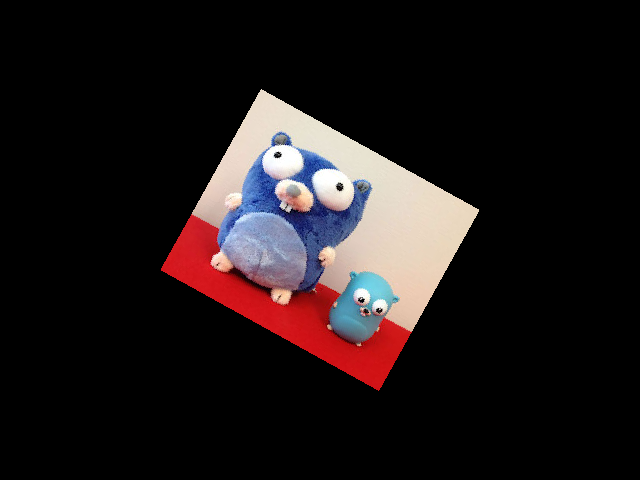
go run github.com/hajimehoshi/ebiten/v2/examples/rotate@latestIf you see this window with a rotating Gophers image, congratulations! You have a correct environment to use Ebitengine!
If you are using the Windows Subsystem for Linux (WSL), you must set the environment variable GOOS=windows when executing the go run command.
GOOS=windows go run github.com/hajimehoshi/ebiten/v2/examples/rotate@latestRunning a program with Ebitengine
Ebitengine can be used as a usual Go library. Go command automatically installs Ebitengine when your program uses Ebitengine.
First, create your local module.
# Create a directory for your game.
mkdir yourgame
cd yourgame

# Initialize go.mod by `go mod init`.
go mod init github.com/yourname/yourgame
Use URL for your module name like github.com/yourname/yourgame. Actually, any module name like example.com/m is fine as long as you don't plan to share this publicly. You can change the module name anytime later.
Add main.go with this content:
Run go mod tidy to add dependencies to your go.mod:
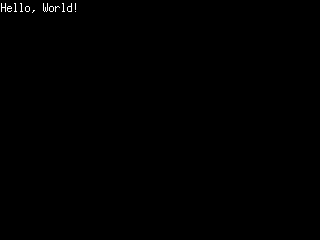
go mod tidyFinally, run go run to execute your program.
go run .You will be able to see a window with a message: